Got skills? Make the Figma agent a better collaborator





From sharing your best thinking to learning from your team’s go-to prompts, here’s what skills unlock in the Figma agent.
Share Got skills? Make the Figma agent a better collaborator
Every team has their own way of working.
Maybe it’s how you capitalize product names, the way your PM formats specs, or the prompt your team swears by for design feedback. These are the workflows everyone relies on—easy to use, hard to explain, and often living in someone’s head.
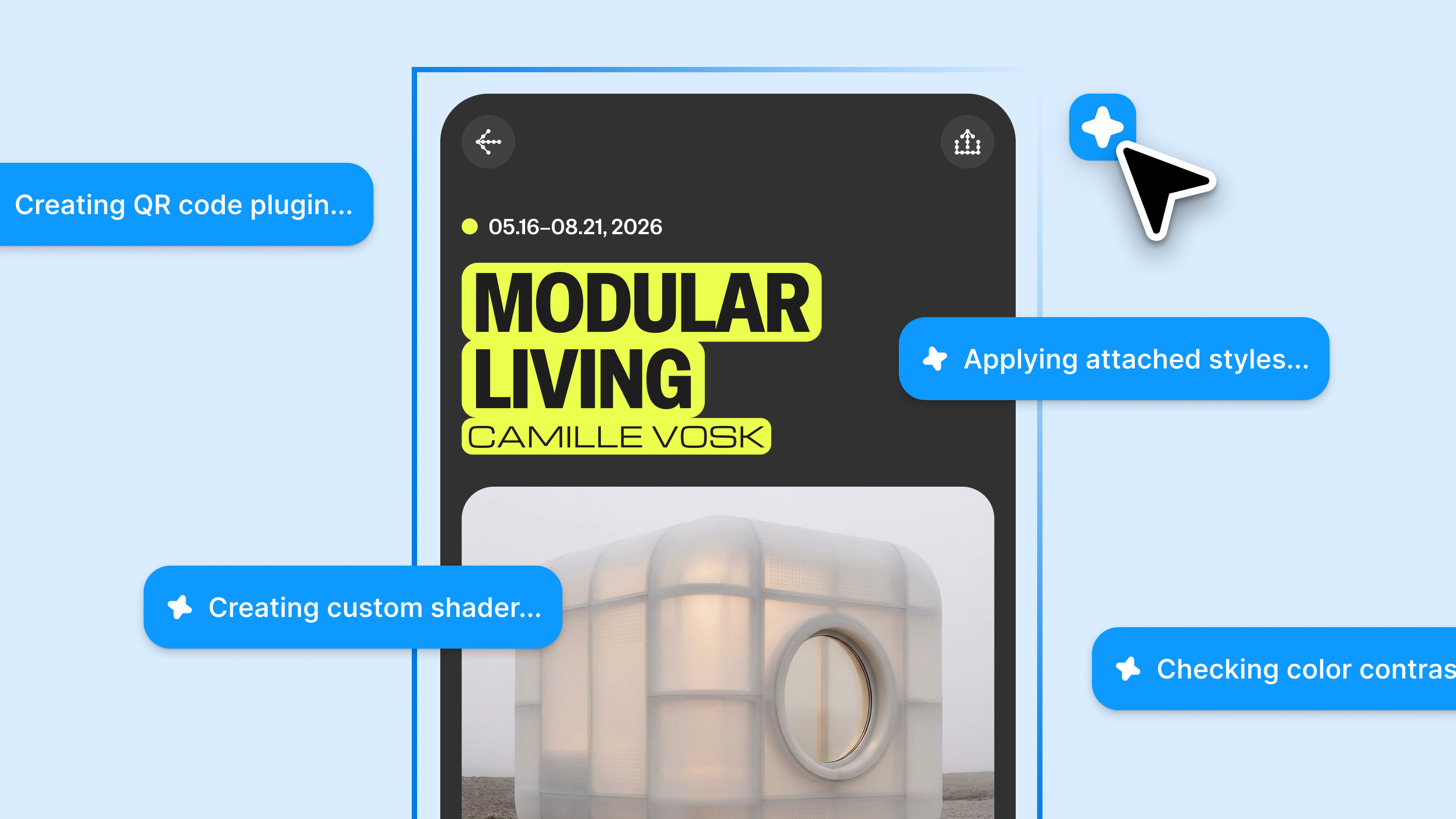
That’s where skills come in. A skill is a reusable set of instructions, written in plain English, that you teach the Figma agent Prompting gets you started. Custom tools, real context, and skills take the design agent further—so what ends up on the canvas actually looks like you.
Figma’s design agent, now with custom tools and greater context
/). Instead of rewriting the same prompt or re-explaining the same process, you can publish a skill to your team or organization so the agent can use it.
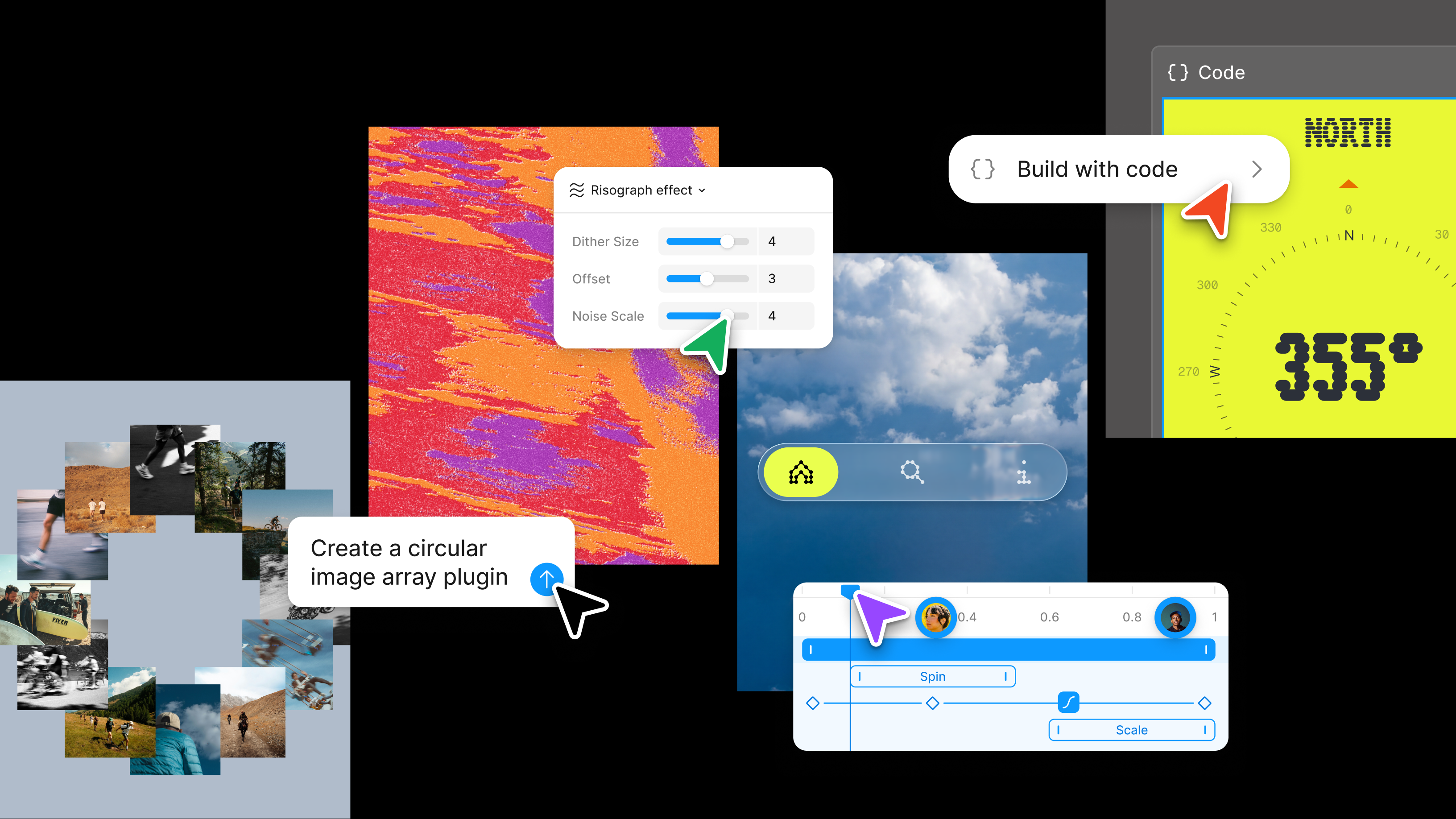
Since launching skills in the Figma agent at Config Push past what you thought was possible with code layers, Figma Motion, shaders, generative plugins and Weave tools, all on the canvas.
Config 2026: New materials, new tools and a more expressive canvas
A second opinion, on demand
/tip
Skills and design systems are complementary. Your design system gives the agent the right components, patterns, and UI elements to build with. Skills layer on the rest of your team’s expertise, from applying your brand voice and compliance guidelines, to critiquing work, following review processes, or even calling your design system as part of a larger workflow.
Skills can help you see work from a sharper angle. They can push on an idea, help you ask better questions, or critique a design through a specific lens. They can also help teams apply and uphold shared standards, from UX writing guidelines, to accessibility checks, to product principles. Here’s how we created some skills to uplevel our work:
- Simulate a stakeholder’s feedback style: Feed the agent examples of how someone gives you feedback—public comments, past critiques, notes in a file—and prompt the agent to apply that skill to your work. We built one based on our CEO Dylan’s comments so designers can pressure-test their work before going into a review.
- Uphold UX writing standards: Give the agent your style guide so it can take a first pass at catching inconsistencies. Figma's UX Writing team built one that follows our standards for capitalization, punctuation, and more, so our writers can focus on the meatier stuff.
- Get a new user’s perspective: Run a skill to review an experience as a first-time user to help surface friction and missing context that is often invisible to anyone who knows the product deeply (e.g. the product designers).
Build once, use everywhere
Some skills make recurring team rituals easier to run. They can help onboard new teammates, prepare project spaces, or give new projects a consistent starting point. The pattern is simple: if your team does something the same way every time, it’s probably worth turning into a skill. Here are a few worth trying:
- A catch-me-up: Summarizes recent activity in a file or project so that anyone rejoining after time away can get up to speed without need to hunt through comment threads.
- A crit prep checklist: The agent interviews you about your project to gather context like persona, scope of work, and crit audience, then creates a crit page with guided discussion prompts. We built our skill to reference Nielsen Norman Group best practices for research questions, ensuring discussion questions drive deeper conversations.
- A crit recap: Takes the feedback from a critique and organizes it into a follow-up plan grouped by theme, including decisions made, action items, and deferred items. Our version of the skill creates a recap card that lives on the canvas or can be pasted into a Slack thread, so nothing gets lost and information flows to the right places after the meeting ends.
Connect the dots
/tip
Skills get even more useful when they can draw from the tools your team already uses. Skills work with MCP connectors to let the Figma agent interact with apps like Slack, Notion, Asana, and more, so it can bring in context like PRDs, product data, research notes, or project discussions as it works beside you.
Skills work across both the Figma agent Starting today, work with an agent that is built for Figma—directly on the canvas. Figma’s MCP server brings your design decisions into the tools where code gets written—so what gets built actually matches what was designed. Here’s what that unlocks for everyone who builds products.The Figma design agent is here

The TL;DR on MCP: Why context matters and how to put it to work
- Log and track feedback: After a review, a skill can take comments and feedback, and convert them into tasks in your project management tool so nothing falls through the gap between design and engineering.
- Bring research into the room: A skill can pull relevant user insights from your research libraries like HeyMarvin or Notion and surface supporting evidence to strengthen a design.
- Back a direction with data: Feed a skill the right data source and it can pull relevant figures to support a design direction, sharpen a narrative, or fact-check a claim before it goes to stakeholders.
/tip
Not every conversation should be shared. If you’re working on something sensitive, you can always switch an agent chat to private.
One of our favorite updates to the Figma agent is that chats are now shared by default in collaborative files. Instead of agent work happening off to the side, you can see how teammates approach problems, which skills they use, and how they prompt to get there.
That changes how people learn. Instead of asking, “How did you do that?” you can open the chat, follow their thinking, and try the approach in your own work.
Extending your team's context and creativity is now easier than ever, learn more about creating your own skills in our help center.
The Figma design agent is available in open beta for Full seat users on Professional, Organization, and Enterprise plans. Collab, Dev, and View seats can use the agent in their drafts. The agent is free to use during beta. Play around in the agent playground file or learn practical ways to use AI in your design workflow.
Sachi Shah is a product manager on Figma's Workflow team, shaping how teams work together—from core sharing and permissions to entirely new cross-product workflows. She earned a self-designed degree in Leadership in Creative Enterprise from Carnegie Mellon University and previously worked at Adobe.