
A properties panel and annotations, now in Figma Make


With visual editing and annotations, Figma Make is bridging the gap between design and code. Select any element you want to change, adjust it directly in the properties panel, or write in-context prompts with annotations.
Share A properties panel and annotations, now in Figma Make
Today, we’re introducing a properties panel and annotations in the Figma Make editor. Whether you’re starting from scratch or editing existing code, these features give you an interactive and visual way to edit directly.
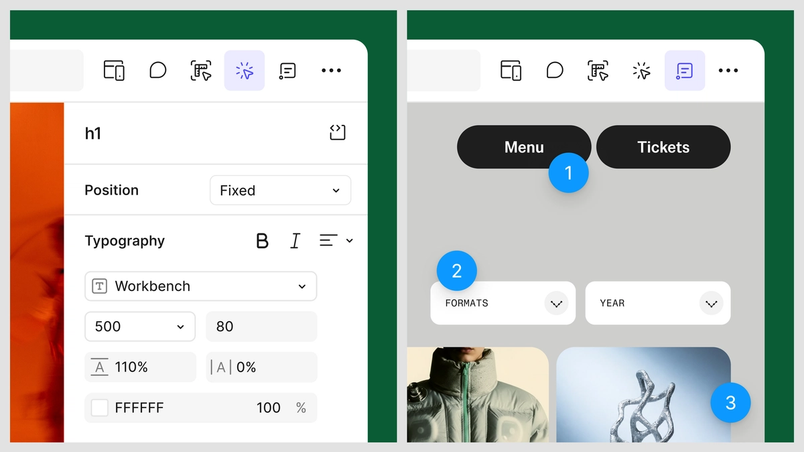
The properties panel brings familiar Figma Design controls—like adjusting spacing, typography, layout, and more—into Make. And for changes that go beyond visual properties, like an interaction or animation, annotations let you give context for the agent directly in your design. So when an edit needs specificity, you can adjust the controls in the properties panel, or use annotations when you need to point and prompt, all while staying in a continuous flow.

A note on credit consumption
Direct manipulation gives Make a precise target, instead of the searching and guesswork a text prompt requires. Each edit uses far fewer tokens and finishes faster than describing the same change in a prompt. Edits stack up in the chat panel first, staged and credit-free, until you apply them. Once you apply the changes, Make consumes credits and updates your file to a new version.
Use the properties panel for visual edits
The properties panel is where you can work through detailed edits with visual controls. You can try different padding, test a few corner radii, play with font weights, and drag elements to reorder them until they feel right. To start, select “Edit” in the top right toolbar, then adjust anything from line height and letter spacing to opacity, z-index, and border style. You can also see the full DOM tree (a layers panel for your code) as you work, and select every instance of an element at once to update them together instead of clicking through each one.
Right now, edits with the properties panel use the color and typography tokens already defined in your codebase. With Code Connect coming soon, Make will also link to your Figma Design components, keeping them consistent across design and code.
Direct manipulation stages every edit in the prompt box so you can review each change before you commit to it, or discard anything that doesn’t look right. Once you’re happy, Make applies the changes and updates the underlying code, so what you build visually is what actually ships.

Annotate to bridge prompting and precision
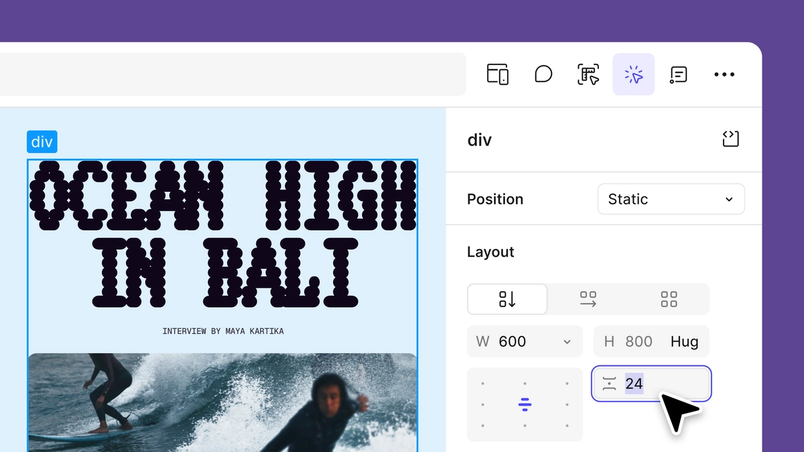
For edits that span beyond visual properties, annotations give the agent context and can cover several elements at once. They’re precise about location but give you flexibility to explain the change in your own words. Select “Annotate for agent” in the toolbar, mark the focus areas directly on the canvas, and describe what you want to update, like “when you hover over this thumbnail, have it zoom in slightly,” “fade this button in after a 300ms delay,” or “add a subtle press effect when this button is tapped.” The agent then reads the exact context you marked and applies your changes across all selected elements in the code.

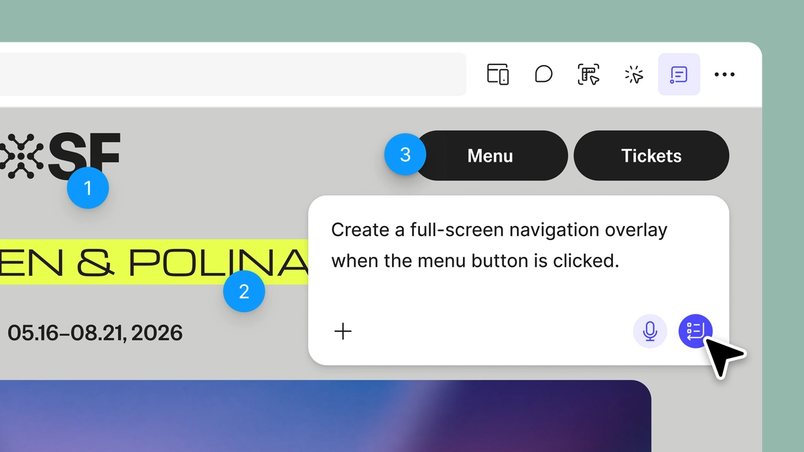
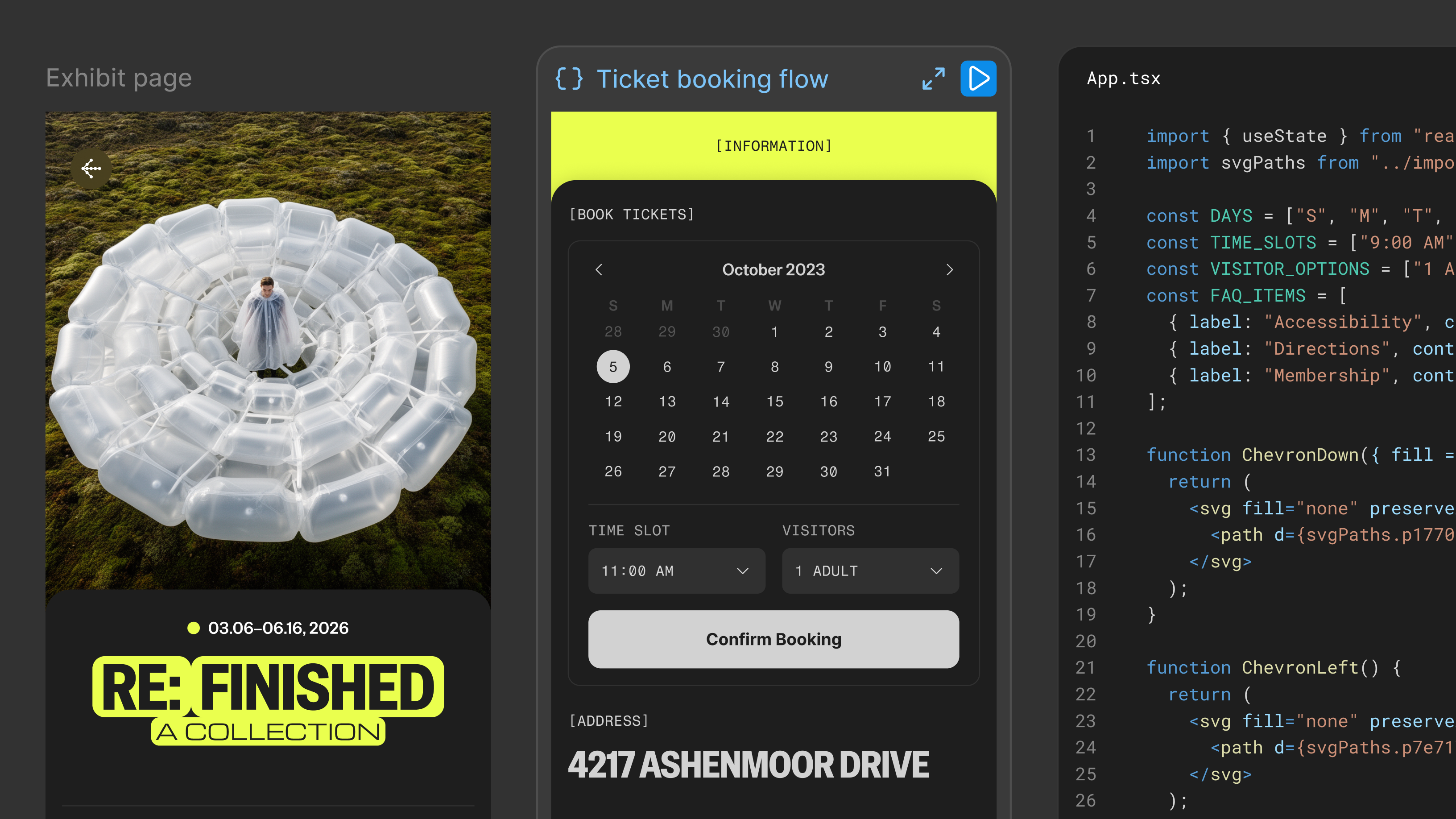
The properties panel and annotations add more precision to editing code than prompting. Whether you’re using direct manipulation to change an element or using annotations to describe a change and specifically steer the agent, you can now design in code with intuitive and visual controls. The same editing experience is coming to code layers With code layers in Figma Design, you can explore multiple directions with code, side by side with your team.
Code on the Figma canvas
The properties panel and annotations are rolling out now and will be available to all seats and plans in Figma Make. Both features will consume credits. Heads up: The properties panel only works with new Make designs. Any previously created designs will continue to use the old editing tool.
Visit our help center to get started. For other ways to get the most out of each credit, check out our tips for using Figma Make credits more efficiently While everyone’s talking about “tokenmaxxing,” we’ve compiled seven best practices to help you build smarter—without prompting more—in Figma Make.
7 tips for using Figma Make credits more efficiently